This manual is for the people who run an institute, centre or other institute on Minbur: administrators, speakers, editors, translators, reviewers and media volunteers. It follows the menu of your institute portal, from the first registration to a live talk, with pictures, diagrams, simulations and real-life cases. Everything here is free for institutes, except advertising requests.
1. Before you start
- Minimum equipment: one smartphone with internet and a charger. A laptop for preparing talks, and a TV or projector with a browser for the big screen, are helpful but not required.
- Roles: the institute admin manages everything; a speaker (speaker) goes live; an editor or translator prepares talk text; a reviewer checks it before it is published; a media volunteer looks after slides and screens.
- Allow about: 20 minutes to register, one evening to set up languages and a first talk, and one Friday test before you rely on it.

2. Register and get approved
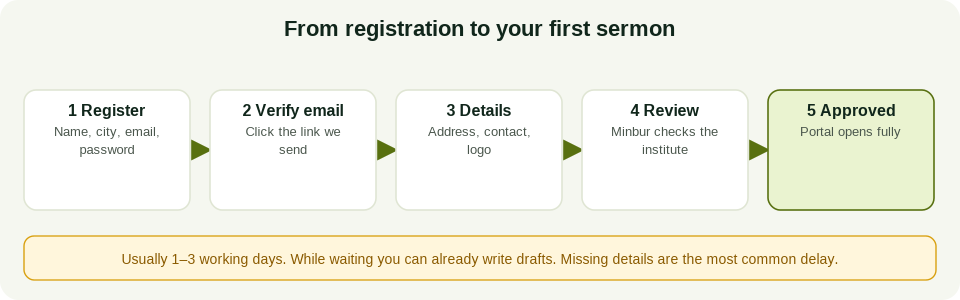
- On the home page choose Register institute and fill in the name, city, country, email and phone.
- Open the link in the email we send to verify your address.
- Sign in and open Verification. Upload your licence or registration certificate and the administrator's ID, add the bank account (the IBAN is checked), and set the map location by moving the pin to your building.
- The platform team reviews your request and sends an email. Until you are approved your institute is not listed publicly. If something is rejected the email says why; fix it and ask again.
- While you wait you can already write drafts and set up languages.
Common reasons for delay: a blurred certificate, an IBAN with a typo, a pin placed in the wrong street, an email that was not verified.
3. A tour of the portal
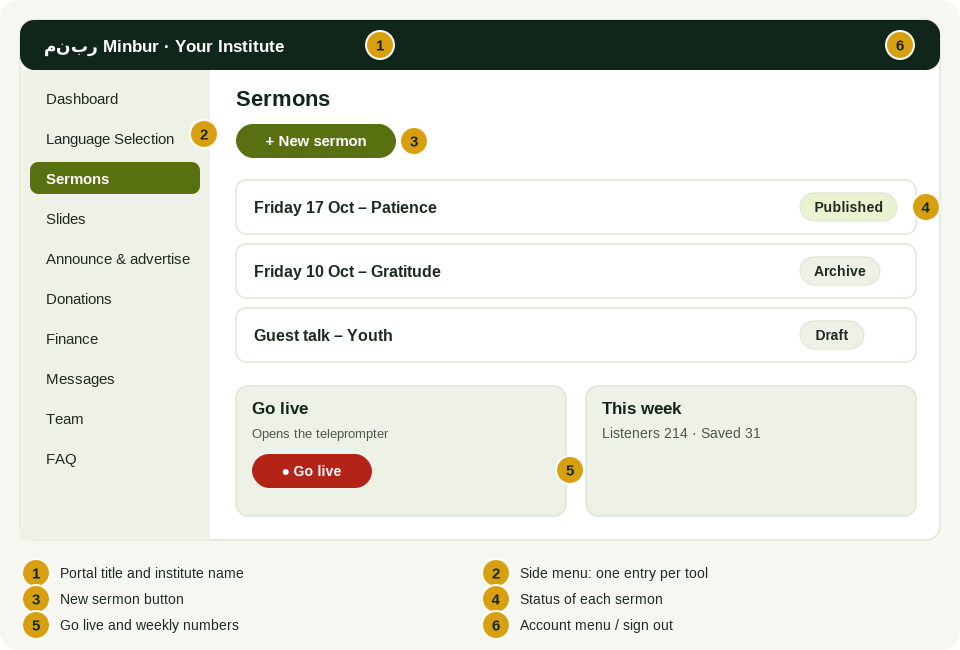
The side menu contains: Dashboard, Language Selection, Verse finder, Talk PDFs, My uploads, Teacher tools, LIVE Quran, Talks, Slides, Tap & pay, Announce & advertise, Donations, Sponsorships, Finance, WhatsApp, Affiliate, Messages, Verification, Announcements, FAQ and Team. The Go live link opens the live console and phone.html opens the phone view for the speaker.
4. Your team and roles
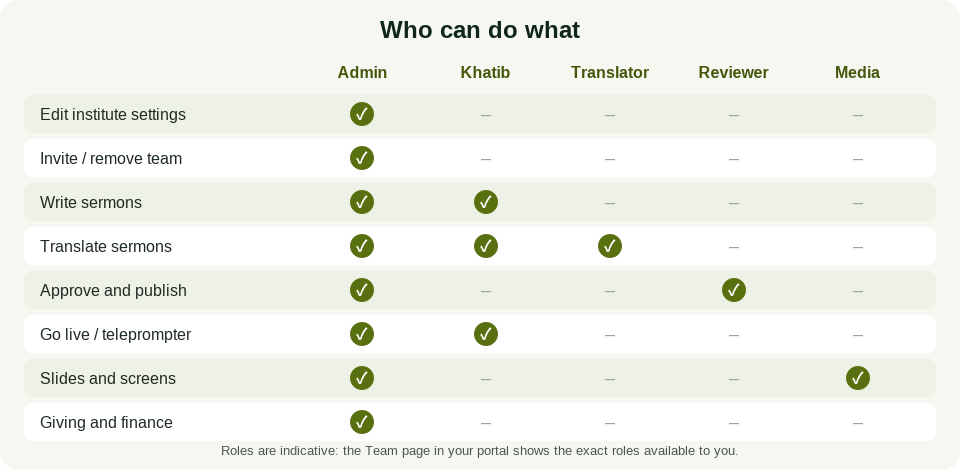
- Open Team and press the add button.
- Enter the person's name and email, and choose a role.
- Give the person the sign-in details or the join code. Share the join code only with people you trust.
- To remove access, disable the account. You can enable it again later.
Good practice: keep at least two admins, give the speaker only the speaker role, and disable accounts of people who leave on the same day.
5. Languages
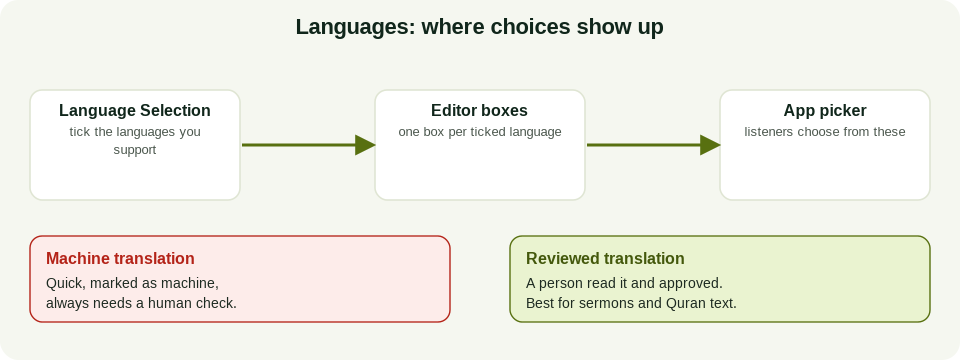
- Open Language Selection.
- Tick the languages your audience needs. Start with two or three; you can add more later.
- Choose the main language of your talks (usually Arabic or the local language).
- Save. Each active language now has its own box in the talk editor and its own choice in the app.
Machine or reviewed? Auto-translated text is marked as machine. It is useful for a first draft but can be wrong, especially with Quran verses, hadith and religious terms. Have a person who knows both languages check it, then it is shown as reviewed.
6. Write a talk

- Open Talks and press New talk. Set the title, the main language, and the date and time.
- Paste the talk text, one sentence or phrase per line. Short lines are easier for the speaker and for the screen: about 8 to 16 words works well.
- Press Insert verse to add a Quran verse or a hadith from the verified library. The Arabic text and the reference come from the library and are exact; do not retype them.
- For each active language, paste a translation (one line for each original line) or press Auto-translate. Empty boxes are marked until they are filled.
- Press Save draft often. Nothing is visible to listeners yet.
- Description Notes is a private box for outlines and reminders. It is never shown to listeners.
Rules of thumb
- One idea per line. If a line needs two breaths, split it.
- Put the verse on its own line, followed by its translation line.
- Keep the number of lines equal in every language so the lines match.
- Do not paste copyrighted material that you do not have the right to share.
Sample talks
At the top of Talks the Sample talks card lists ready talks with Arabic (with full harakat), English and several other languages. Press Copy to my drafts to get your own editable copy, then change it to fit your audience. Always have a scholar review the Arabic, the hadith wording and the references before you use a sample at the pulpit.
7. Review and publish
- Press Submit for review. The status becomes In review.
- A reviewer opens the talk, reads each language and either approves it or returns it with a note. A returned talk goes back to Draft with the note shown on top.
- The institute admin presses Publish. Only published talks can go live and appear in the archive.
Small team? One person can hold both roles, but ask a second person to read the text at least once. A fresh pair of eyes finds mistakes.
8. Go live
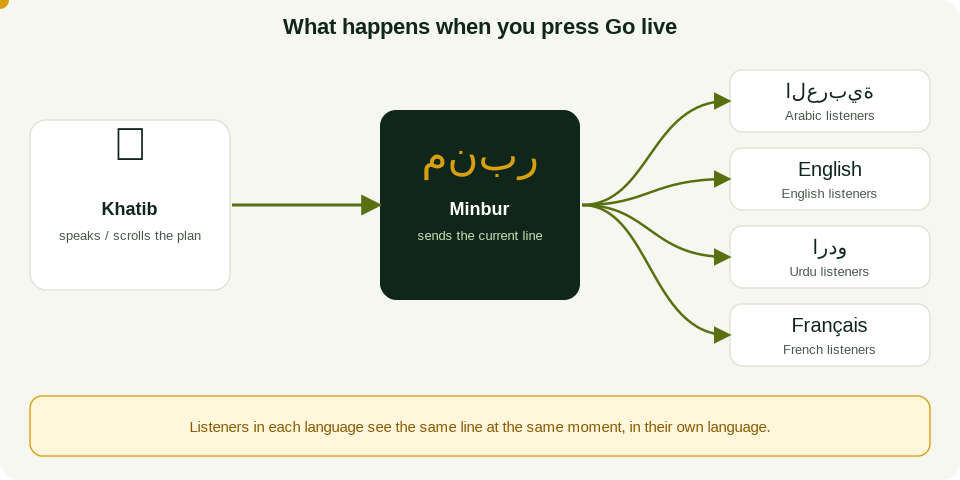
- Open the Dashboard. In Go live choose a published talk and, if you have several halls, the room.
- Press Go Live. Everyone watching sees one line at a time. Use Pause, Back and Next line to follow the speaker.
- Tick Allow attendees to listen to the speaker live if you want to share audio. You can switch it on or off at any time. Open the speaker console (teleprompter and microphone) and press Broadcast audio; keep that page open while you speak.
- Press Stop live when you finish. The talk moves to the archive.
Everything on this page works from a phone. If the institute has no Wi-Fi, listeners can use their own mobile data.
Who moves the lines?
- The speaker on a phone: taps Next after each line. Simple, no extra person.
- A volunteer on a second phone or laptop: follows the speaker and moves the lines. The speaker can then keep both hands on the notes.
9. Screens, QR code, posters and the hall
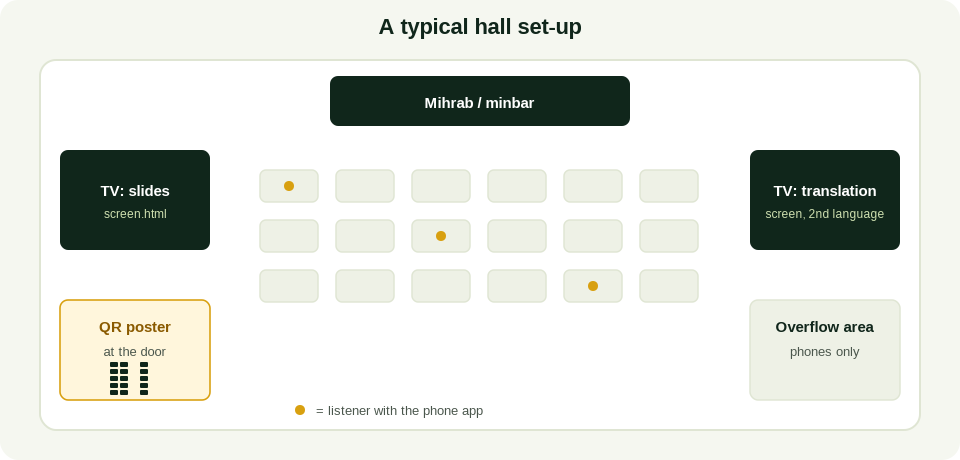
- Scan to listen: show or print the QR code at the entrance. You can copy the link, share it by WhatsApp or email, and print a poster.
- TV display: open the TV page on the screen, type the 6-digit code it shows into TV pairing and press Pair TV. Choose the accent colour and text size in TV theme.
- Donate poster: prints a poster with a QR code to your donation page.
Pairing a TV, step by step
- Open the TV page in the TV's browser. A 6-digit code appears.
- In the portal open the TV pairing box, type the code and press Pair TV.
- The TV shows your institute. If it does not, get a new code and try again within a few minutes.
10. The Friday run sheet
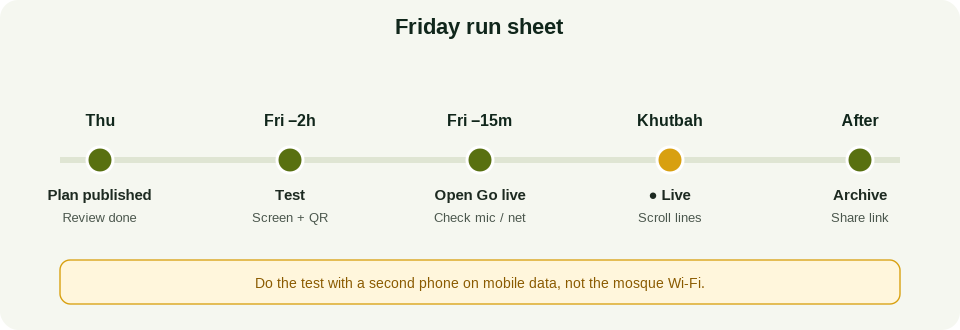
- Thursday: the talk is reviewed and published. Check that every active language has text.
- Friday, two hours before: open the app on a second phone using mobile data, not the institute Wi-Fi. Check the lines and the screen.
- Fifteen minutes before: open Go live. Check the microphone and the battery. Plug in the phone.
- During the talk: move the lines. Do not close the page.
- After: press Stop live. Share the archive link if you wish.
11. Slides
Open Slides to make a slide deck for the screen: add pictures (including from the Image Library if your account has access), captions and the order. Slides can run during idle time or as part of a talk.
- Press New deck and give it a name.
- Add pictures and a short caption for each.
- Drag to change the order.
- Show the deck on the TV page; listeners can open the slide on their phone.
12. Libraries and teaching tools
- Verse finder: search the Quran by words, reference (for example 2:255) or one of the 18 talk categories.
- Talk PDFs: ready-made talks, books and handouts shared by the platform and other institutes. Search, preview, download or print. My uploads holds your own files; choose whether each is private or shared.
- Teacher tools: material for classes and study circles.
- LIVE Quran: choose what opens first for your members, or go live with a channel so members see a Join button.
13. Hisn al-Muslim (platform administrators only)
The supplications library is managed by the Minbur platform team, not by each institute. Your members read and listen to it in the app (see the listener guide). If you notice a mistake in a supplication, tell us through Contact and name the chapter and the line. The team can search, filter, add, edit, publish and unpublish any record, export the full structure as JSON or CSV, and import files in the same structure.
Translations and the machine voice are not scholarly reviewed until the team marks them as edited.
14. Giving
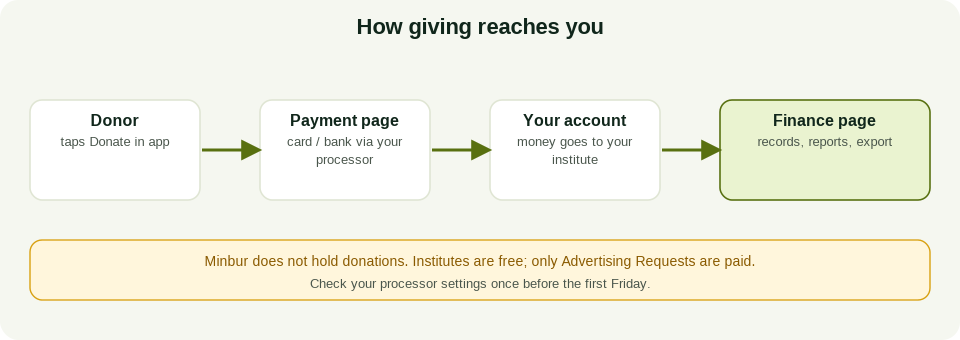
- Donations: publish how supporters can pay (for example bank transfer or CliQ), set goals and confirm gifts when they arrive.
- Tap & pay: accept gifts by card or phone at the institute.
- Sponsorships: let families sponsor a day of prayer.
- Friday Waqf: supporters can pledge a regular gift every Friday.
- Finance: a statement of gifts and payouts for your treasurer.
Before the first Friday: make a small test gift yourself and check that it appears in Finance.
15. Announcements, advertising and messages
- Announcements (Media calendar): your own greetings, ticker lines and notices.
- Announce & advertise: send a request to advertise. This is the only paid service; you will see the price before you confirm.
- WhatsApp: send short broadcasts, such as a change of prayer time, to people who opted in.
- Messages: questions sent to your institute, for example "Ask the treasurer". Replies go to the sender by email.
- FAQ: add your own questions for attendees. The platform's questions are shown with them.
16. AI assistant (optional)
The AI assistant helps a speaker draft, reword or shorten a talk. It is off until you add your institute's own key from an AI provider and switch it on; the cost is yours. A person must always check the result, and Quran verses must come from the verified library, not from the assistant.
17. Nearby listing and the demo pin
- Listeners see institutes within 5 km of their position or of an address they type. Make sure your map pin in Verification is on your building, or you will not appear in the right place.
- Live institutes are listed first, so go live a few minutes early.
- The dark dashed demo pin is a sample, not a real institute. If it is your institute, use Claim this pin on the landing page.
18. Common problems
- The TV does not pair: open the TV page again to get a new code, and type it within a few minutes.
- Listeners cannot hear the speaker: check that Allow attendees to listen is on and that the speaker console is open with Broadcast audio pressed.
- A language is missing in the app: turn it on in Language Selection and add the translation to the talk.
- I cannot publish: a talk must be reviewed first, and only the institute admin can publish.
- We do not appear in the nearby list: check the map pin and that your institute is approved.
- A returned talk: read the note at the top, fix the text and submit again.
19. Case studies
Case 1. A small institute with one phone
No team, no TV. The speaker is also the admin.
- Register and enable one extra language.
- Copy a sample talk to drafts and adapt it. Ask a trusted brother to read it, then publish.
- On Friday, print the QR poster for the door. Put the phone on the minbar, press Go Live and tap Next after each paragraph.
- Ask one listener to confirm on their own phone that the lines move.
Case 2. A large institute with a TV and five languages
Three roles work in parallel.
- The admin enables five languages and invites two translators and one reviewer.
- The speaker writes the Arabic on Tuesday. Translators fill their boxes on Wednesday, starting from Auto-translate and correcting it.
- The reviewer approves on Thursday; the admin publishes.
- A media volunteer pairs two TVs and runs the lines on a laptop. The speaker only speaks.
Case 3. A guest speaker
Create a team account with the speaker role for the guest, or send the text before Friday and let your own editor enter it. Do not share an admin password. Remove the account after the visit.
Case 4. Ramadan and Eid
Use the Announcements calendar for taraweeh times and Eid prayer details. Publish the Eid talk early, test it with a second phone, and print extra QR posters for the overflow area outside.
Case 5. The internet drops mid-talk
The page keeps the last line and reconnects by itself. If it does not, refresh the page and press Go Live again; listeners reconnect when the line moves. Keep the printed talk as a backup. Switch the phone to mobile data if the institute Wi-Fi is the problem.
Case 6. Translations that need review
If a language shows the "machine" mark, ask a bilingual member to read it against the Arabic. Fix the text in the editor and save. A reviewed text no longer carries the mark. For verses, always use Insert verse instead of retyping.
Case 7. A team member leaves
Open Team and disable the account the same day. If they knew the join code, ask Minbur through Contact to replace it. Move any drafts they own to another editor.
Case 8. A mistake found after publishing
Open the talk, fix the line and save. Listeners see the corrected line. If the talk is already live, press Back and then Next to show the corrected line again.
20. Getting help
Use the Contact page, or the help assistant on the portal. Describe what you did and what you saw, and attach a screenshot if you can. Team members should ask their institute admin first.
All Arabic and translations in samples are machine-prepared and need scholarly review before use.